Platform-as-a-service products made git push deployments feel normal. Once you move to your own VPS, though, you usually end up building the same pipeline by hand: a process manager, an Nginx reverse proxy, TLS certificates, a webhook receiver, a deploy script, a rollback plan, and some way to stop one app from eating the whole server.
This post walks through how that pipeline looks inside HPanel, a self-hosted web hosting control panel. HPanel puts Git auto-deploy, a Node.js app manager (PM2), a Python app manager (virtualenv + Gunicorn) and Docker into the same panel that handles domains, DNS, SSL and email. We'll look at what each piece does, how they connect, and what to put in your repo so deployments are predictable.
Disclosure: I'm on the HPanel team. Everything about HPanel below comes from the product's public features page and docs. The code is plain Node/Python that works anywhere.
The problem we're solving
A "simple" production deploy on a bare VPS usually involves all of this:
- Code delivery: pulling the right branch when you push.
- Build steps:
npm ci,npm run build,pip install -r requirements.txt, migrations. - A process manager: keeping the app alive, restarting it on crash, running more than one instance.
- A reverse proxy: routing
api.example.comto127.0.0.1:3001with TLS. - Secrets: environment variables that live outside the repo.
- Rollback: getting back to the last good version when a deploy fails.
- Isolation: making sure one app (or one customer) can't starve everything else on the box.
You can glue all of that together with shell scripts and systemd units, and many of us have. The trade-off is that every new app means writing the glue again, and every customer on a shared server multiplies it. A hosting control panel that treats these as first-class features turns most of the list into settings.
How HPanel splits the work
HPanel has three panel levels: Admin, Reseller and User. Everything in this article happens in the User panel, the same place a hosting customer manages their files, email and databases. Each user gets:
- Git Deploy: auto-deploy from GitHub, GitLab or Bitbucket.
- Node.js App Manager: deploy Node apps with PM2 and multiple Node versions.
- Python App Manager: Django, Flask, FastAPI and other WSGI/ASGI apps with virtualenv and Gunicorn.
- Docker Manager: per-user containers.
- Web terminal: a browser-based shell that runs as the user's Linux account.
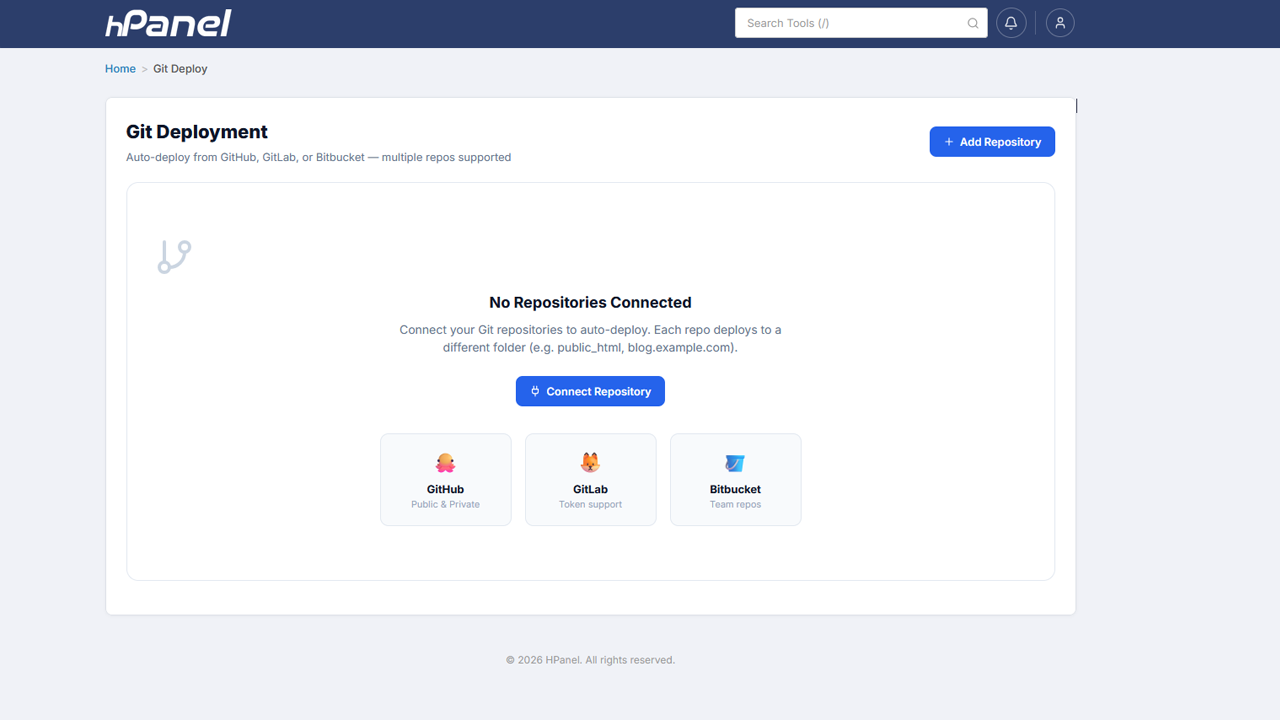
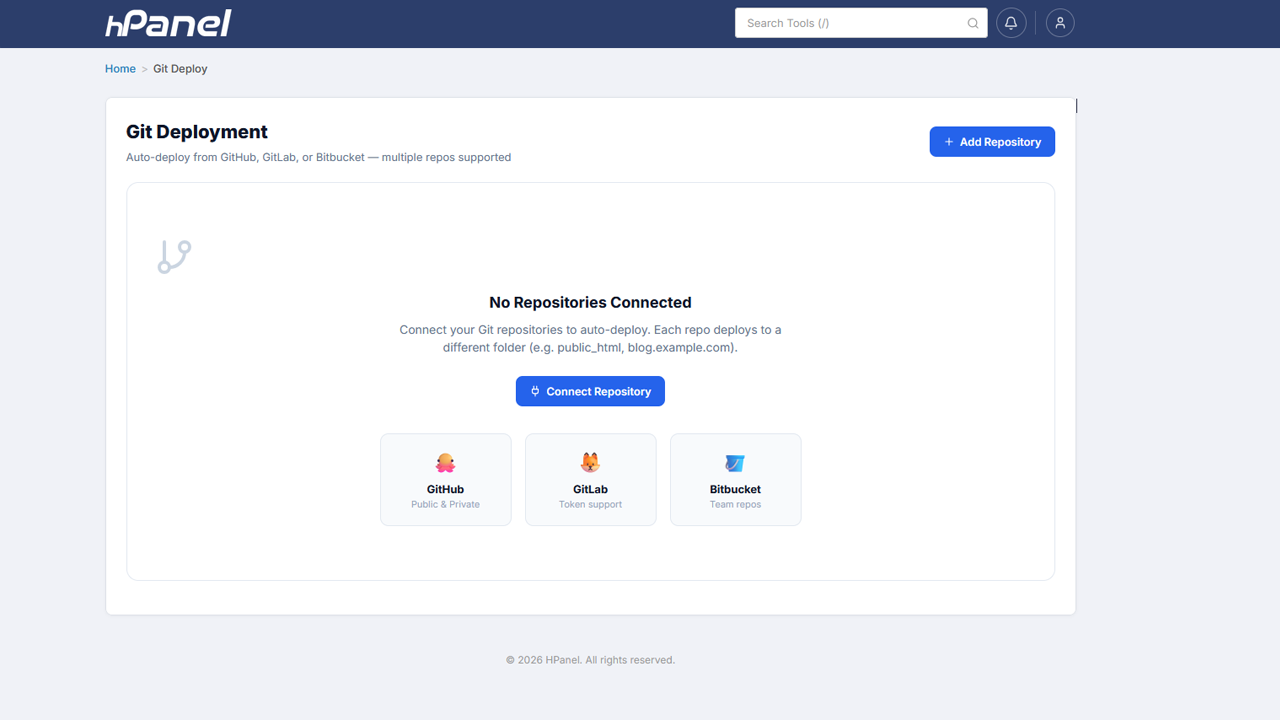 Git Deployment in the HPanel User panel: connect GitHub, GitLab or Bitbucket repositories.
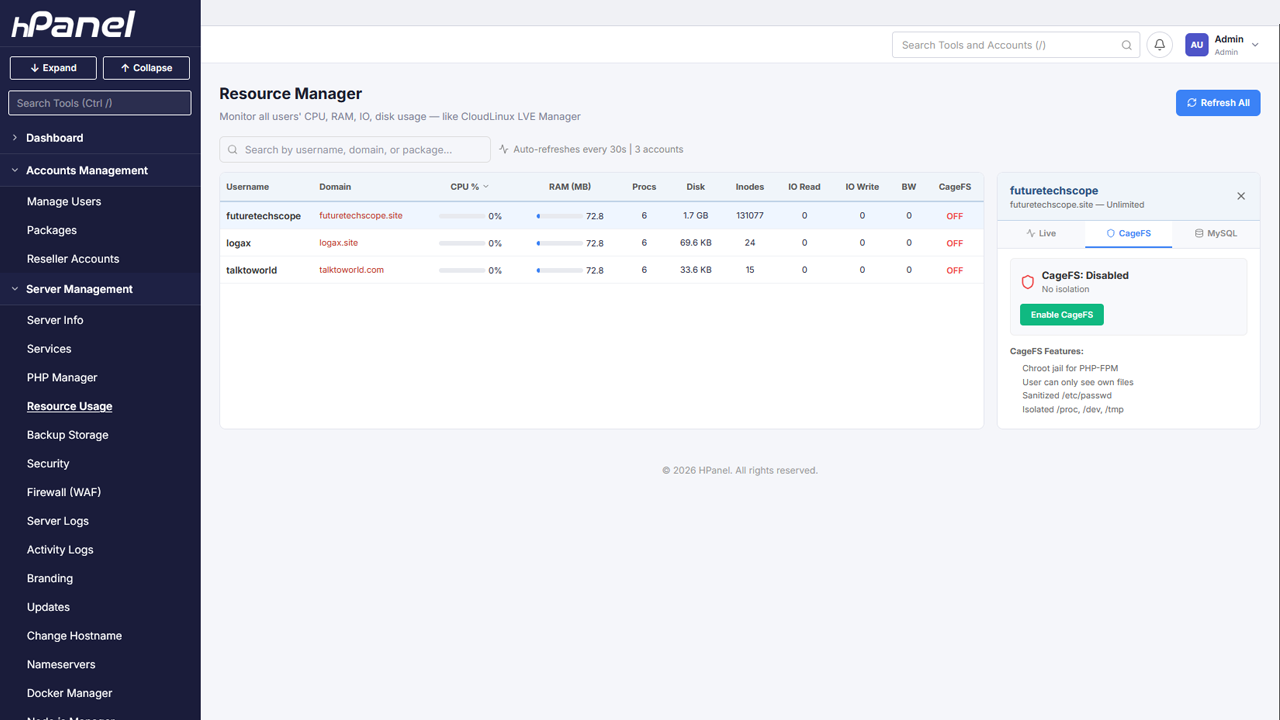
Underneath, the account is isolated with Linux cgroups: per-account CPU, RAM, IO, disk, inode, bandwidth and process limits from the hosting package. There's also a chroot filesystem jail and a per-user MySQL governor. That isolation matters a lot once you let people run long-lived processes.
Part 1: Git auto-deploy
According to HPanel's features page, Git Deploy supports:
| Capability | What it means in practice |
|---|---|
| Multi-repo | Connect several repositories, each deploying to a different domain or directory |
| Private repos | Personal access token authentication for GitHub, GitLab and Bitbucket |
| Webhook auto-deploy | Push to Git → automatic deployment |
| Domain-based deploy path | Pick a domain plus an optional subdirectory as the target |
| Pre/post-deploy scripts | Run npm install, composer install, build commands, migrations |
| Automatic rollback | Failed deployments roll back to the last working version |
| Disk quota protection | Checks repo size against available space before deploying |
| Deployment history | A log of every deployment with commit hash, status and timing |
A typical setup looks like this:
- Connect the repository. For a private repo, create a personal access token with read access to the repo on your Git host and add it in the panel. Use a token scoped to one repo, or a read-only token, rather than your account password.
- Pick the target. For example,
main→~/public_htmlfor a static frontend, ormain→~/api.example.comfor an API. - Add the webhook. HPanel gives you a webhook URL for the repo. Paste it into your Git host's webhook settings, triggered on push.
- Define the deploy scripts. This is where your build steps go (examples below).
From then on, a git push to the tracked branch triggers a deploy. If the scripts fail, HPanel rolls back to the last working version, and the deployment history records the commit hash and status either way.
Make your repo deploy-friendly
The panel can only be as reliable as your build. A few habits help a lot:
Pin your toolchain. Commit a lockfile (package-lock.json, poetry.lock, or pinned requirements.txt) so a deploy never resolves different dependency versions than your tests did.
Make deploy scripts idempotent. A script that can run twice safely is a script you can retry:
# post-deploy (Node.js)
set -euo pipefail
npm ci --omit=dev
npm run build --if-present
# post-deploy (Python / Django)
set -euo pipefail
source venv/bin/activate        # path depends on your app's virtualenv
pip install -r requirements.txt
python manage.py migrate --noinput
python manage.py collectstatic --noinput
set -euo pipefail matters here. It makes the script exit non-zero on the first failure, so a broken build is reported as a failed deploy (and rolled back) instead of quietly half-succeeding.
Keep secrets out of Git. Both the Node.js and Python app managers let you set environment variables from the dashboard UI. Read config from process.env / os.environ and commit a .env.example with dummy values only.
Part 2: Node.js apps with PM2
HPanel's Node.js App Manager covers:
- Multiple Node.js versions, selectable per app (18, 20, 22+),
- PM2 process management with auto-restart, cluster mode and log management,
- Environment variables set from the dashboard,
- Automatic Nginx config routing a domain to the Node.js app (reverse proxy),
- Live logs and stats: real-time output, CPU and memory usage.
You can upload app files or deploy from Git, so the Git Deploy pipeline above feeds straight into it.
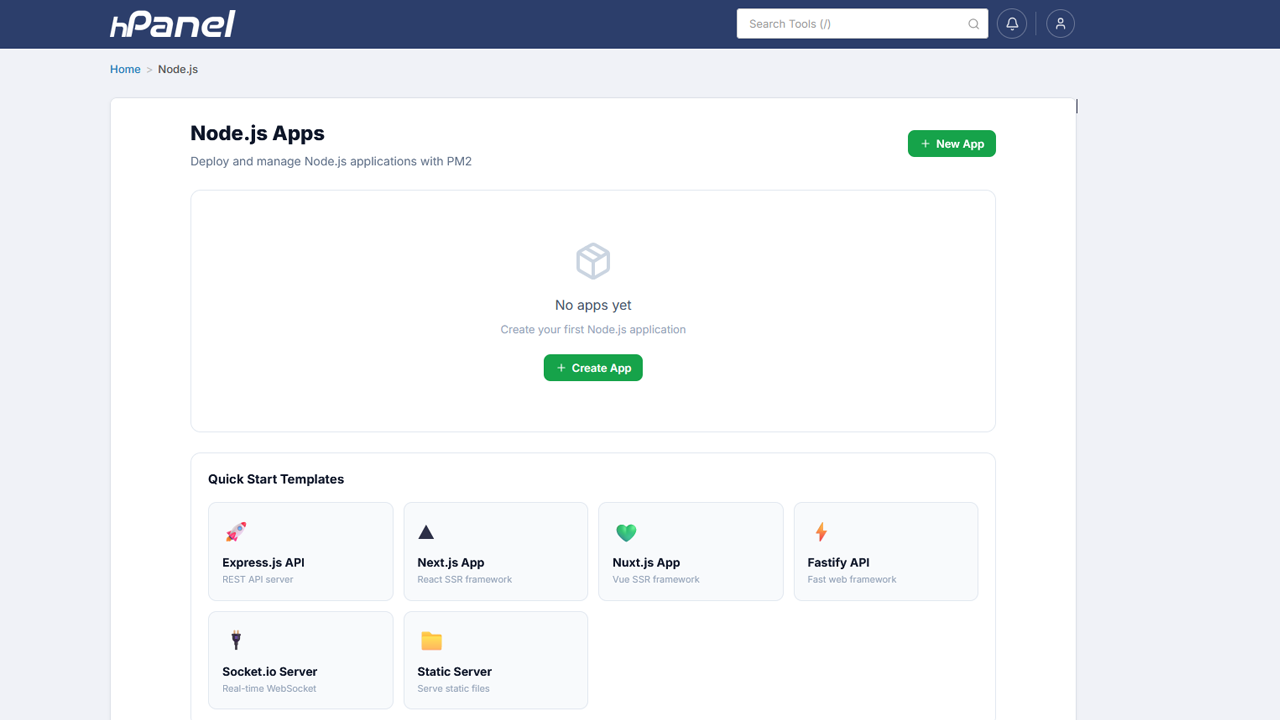 The Node.js app manager in the User panel.
A minimal production-ready Express app
The panel handles the proxy and the process manager. Your app only has to do three things: listen on the port it's given, behave well behind a proxy, and shut down cleanly.
// server.js
const express = require('express');

const app = express();
app.set('trust proxy', 1); // we're behind Nginx: honor X-Forwarded-* headers

app.get('/health', (req, res) => res.json({ ok: true }));
app.get('/', (req, res) => res.send('Hello from a self-hosted Node app'));

const port = process.env.PORT || 3000;
const server = app.listen(port, () => console.log(`listening on ${port}`));

// PM2 sends SIGINT on reload/stop: finish in-flight requests, then exit
process.on('SIGINT', () => server.close(() => process.exit(0)));
Why each line matters:
process.env.PORT: the app manager allocates the port and the reverse proxy targets it, so never hard-code the port.trust proxy: without it,req.ipandreq.protocolshow the proxy rather than the client, which breaks rate limiting and HTTPS redirects.- Graceful shutdown: PM2 restarts the process on deploy. Closing the server first means in-flight requests aren't cut off.
Cluster mode, with care
PM2's cluster mode runs several instances of your app behind one port, which helps on multi-core machines. Two things to remember:
- State must live outside the process. In-memory sessions or caches won't be shared across instances. Use Redis or your database instead (HPanel already includes Redis for object caching).
- Your instance count is bounded by your package. cgroups enforce the account's CPU and RAM limits. Four instances on a package with a small memory limit will just compete for the same budget. Check the live CPU and memory stats after a deploy and size the instance count to match.
Part 3: Python apps with virtualenv and Gunicorn
The Python App Manager provides:
- Multiple Python versions: 3.10, 3.11 or 3.12 per app,
- virtualenv isolation: each app gets its own environment and packages,
- pip dependency management: install from
requirements.txtwith one click, - Gunicorn: configurable workers and timeout,
- Automatic Nginx reverse proxy for domain → app routing with SSL,
- Environment variables from the dashboard,
- Framework support: Django, Flask, FastAPI, Bottle, Tornado, and any WSGI/ASGI framework.
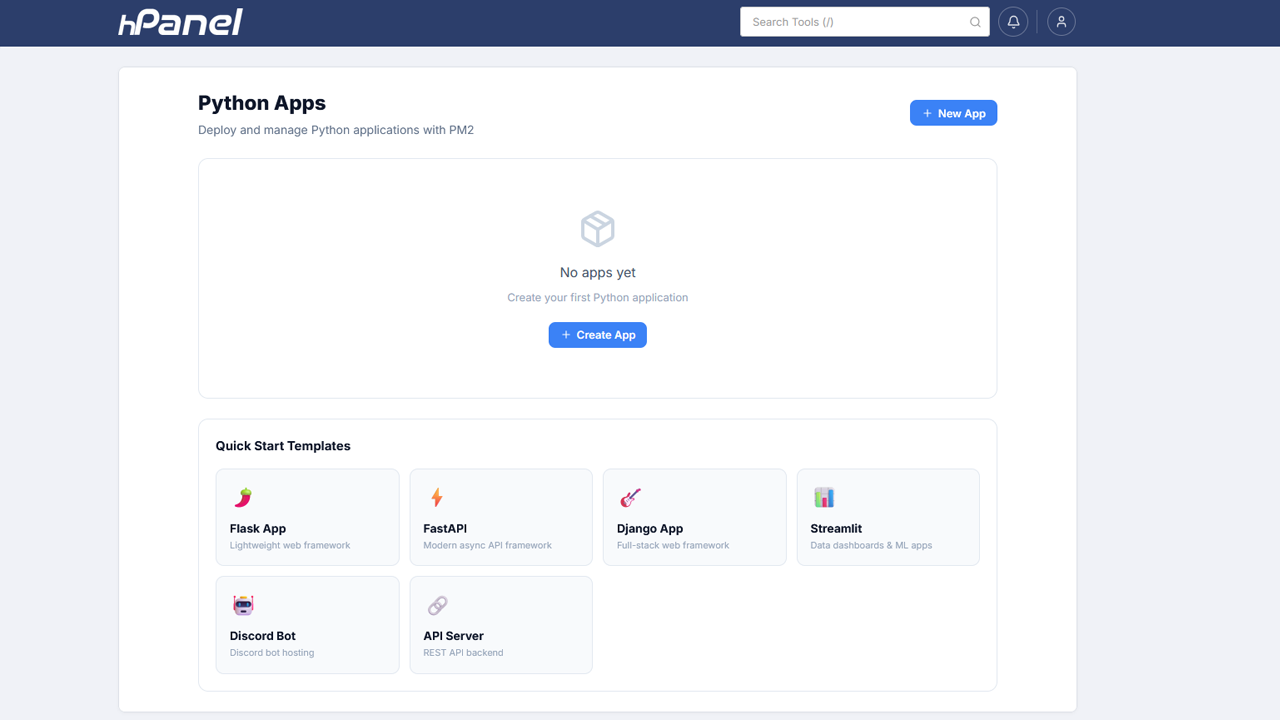 The Python app manager with quick-start templates.
Flask (WSGI)
# app.py
import os
from flask import Flask, jsonify
from werkzeug.middleware.proxy_fix import ProxyFix

app = Flask(__name__)
app.wsgi_app = ProxyFix(app.wsgi_app, x_for=1, x_proto=1)  # behind Nginx
app.config["SECRET_KEY"] = os.environ["SECRET_KEY"]        # set in the dashboard

@app.get("/health")
def health():
    return jsonify(ok=True)
# requirements.txt
flask==3.0.*
gunicorn==22.*
Gunicorn's entry point is app:app (module app, object app).
FastAPI (ASGI)
FastAPI is an ASGI app. Under Gunicorn, the standard approach is Uvicorn's worker class:
# main.py
import os
from fastapi import FastAPI

app = FastAPI()

@app.get("/health")
def health():
    return {"ok": True, "env": os.environ.get("APP_ENV", "production")}
# requirements.txt
fastapi
uvicorn[standard]
gunicorn
The equivalent command line is gunicorn main:app -k uvicorn.workers.UvicornWorker. Configure the worker class according to how your app manager setup exposes Gunicorn options. (This part is generic Gunicorn/Uvicorn usage, not HPanel-specific.)
Sizing workers
The classic Gunicorn rule of thumb is 2 × cores + 1 workers. On shared hosting, though, the number of cores your account can use is set by the package's cgroup CPU limit, not by the machine. Start small (2–3 workers), watch memory, and raise the count only if requests queue. Set a sensible timeout so a stuck request gets recycled instead of holding a worker forever.
Part 4: When a container makes more sense
Some workloads don't fit "a Node or Python process behind Nginx": a specific database version, a queue worker image, or a service you'd rather run as published. HPanel's Docker Manager lets users:
- pull images from Docker Hub, custom registries or private registries,
- create, start, stop and remove containers, with environment variables, port mapping, volume mounts and restart policies,
- view live container logs.
Container CPU and memory limits come from the hosting package, and containers use the user's disk quota, so the same isolation rules apply.
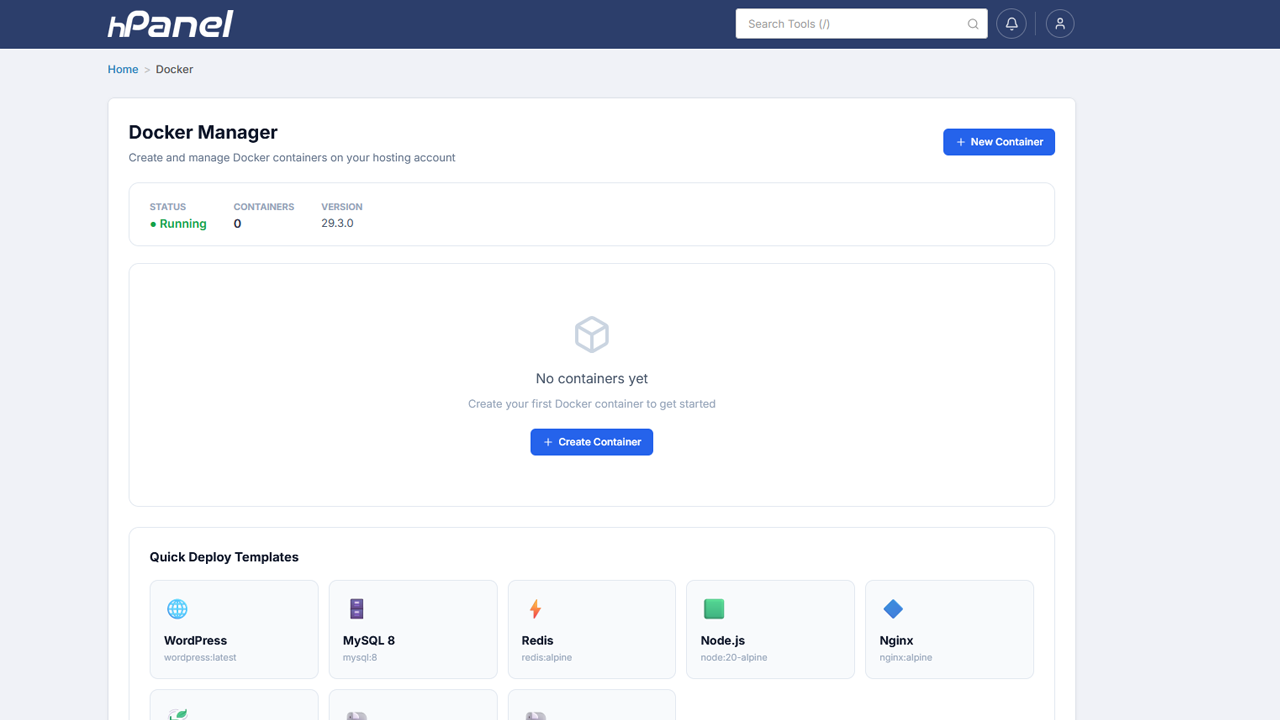 Per-user Docker management with quick templates.
A pattern that works well: run the app through the Node.js or Python manager (so it gets the managed reverse proxy, SSL and Git deploy), and run supporting services such as Redis or a worker in containers.
Part 5: Putting it together, step by step
Here's the complete flow for an API at api.example.com:
- Add the domain or subdomain in the User panel. SSL is issued automatically through Let's Encrypt once DNS points at the server.
- Create the app in the Node.js or Python manager: choose the runtime version and set the environment variables (
SECRET_KEY,DATABASE_URL, …). - Create a database if you need one (MySQL is in the User panel, with phpMyAdmin SSO).
- Connect the repository in Git Deploy, pointing
mainat the app's directory, and add the post-deploy script. - Add the webhook to your Git host.
- Push. Check the deployment history for the commit hash and status, then open the app manager's live logs.
- Break it on purpose once. Push a commit with a failing build and confirm that the deploy is marked failed and rolled back. It's better to learn how rollback behaves on a quiet afternoon than during an incident.
Things to keep in mind
- The panel handles the plumbing; your app still owns correctness. Health endpoints, graceful shutdown and idempotent migrations are still up to you.
- Treat tokens like passwords. Use scoped, read-only repo tokens for private-repo deploys.
- Watch your limits. Per-account isolation protects neighbours, which also means your app will hit its own ceiling first. Use the live CPU and memory stats.
- Don't edit files on the server that Git Deploy manages. The next deploy will overwrite them. Change the repo instead.
Wrapping up
The pieces of a git push workflow (webhooks, builds, a process manager, a reverse proxy, TLS, rollback and isolation) aren't exotic. They're just tedious to rebuild for every app and every customer. Having them as built-in, per-account features of a self-hosted control panel means a new app takes a few settings instead of a new set of scripts, and the same setup works for a single developer VPS or a hosting company with hundreds of accounts.
HPanel runs on Ubuntu 22.04/24.04 LTS, is licensed as one flat license per server with no per-account fees, and includes every feature in every plan, including Git deploy, the Node.js and Python app managers, and Docker. If you want this workflow on your own server, buy now on the HPanel pricing page, then follow the installation docs.
Questions about the deploy flow, or edge cases you've hit with PM2 or Gunicorn behind a panel? Leave a comment and I'll answer.
About the author
- Self-hosted hosting control panel for Ubuntu servers. Website: https://hpanel.net/ Pricing: https://hpanel.net/pricing.php
Comments
Join the discussionNo comments yet. Be the first to comment.